Your windows.
Back where they belong.
Save a layout for each screen setup.
Bring your windows back to the right display and Desktop.
 Download free trial
  Watch the film
14-day trial · No card required · One-time purchase
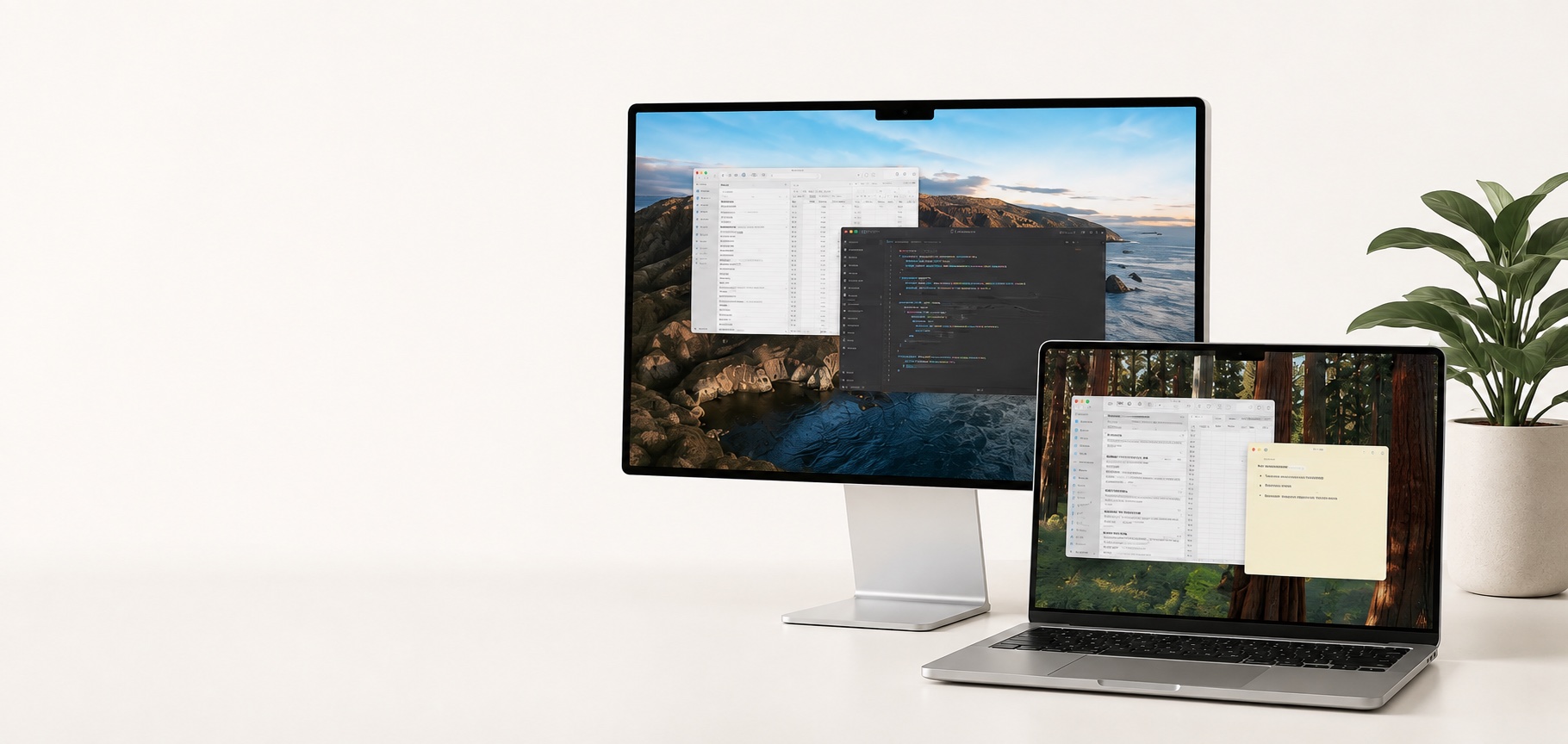
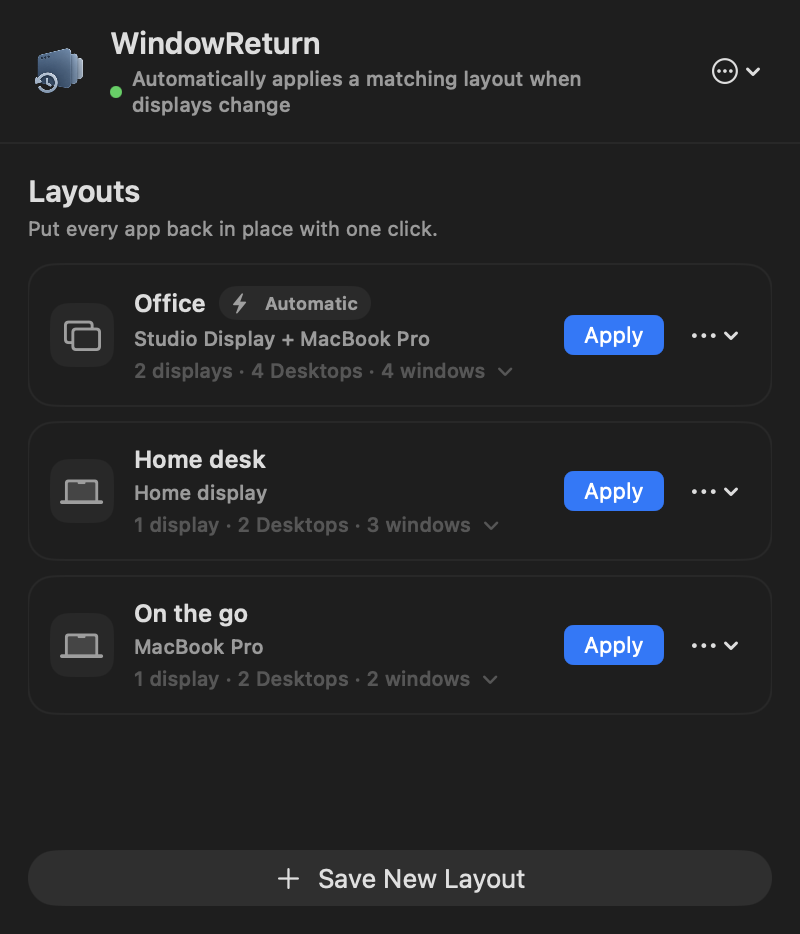
A change of desk. The same familiar setup.
Back to your flow.
A short look at the idea behind WindowReturn.
Read the video description
A person connects a laptop at a desk. Windows move into a saved arrangement across the laptop and an external display. Another Desktop shows a second pair of apps. This sequence illustrates the experience; it is not a live recording.
The real WindowReturn interface then shows an example Office layout, marked Applied and Automatic. Its expanded view lists the apps on each display and Desktop. The film ends with “WindowReturn. Back to your flow.”
The film has instrumental music and room sounds, with no spoken dialogue.
Not just the right screen.
The right Desktop.
Keep each app on the Desktop where you work with it—not just on the right monitor.
- Desktop 1
- Safari + Notes, side by side.
- Desktop 2
- Finder, right where you left it.
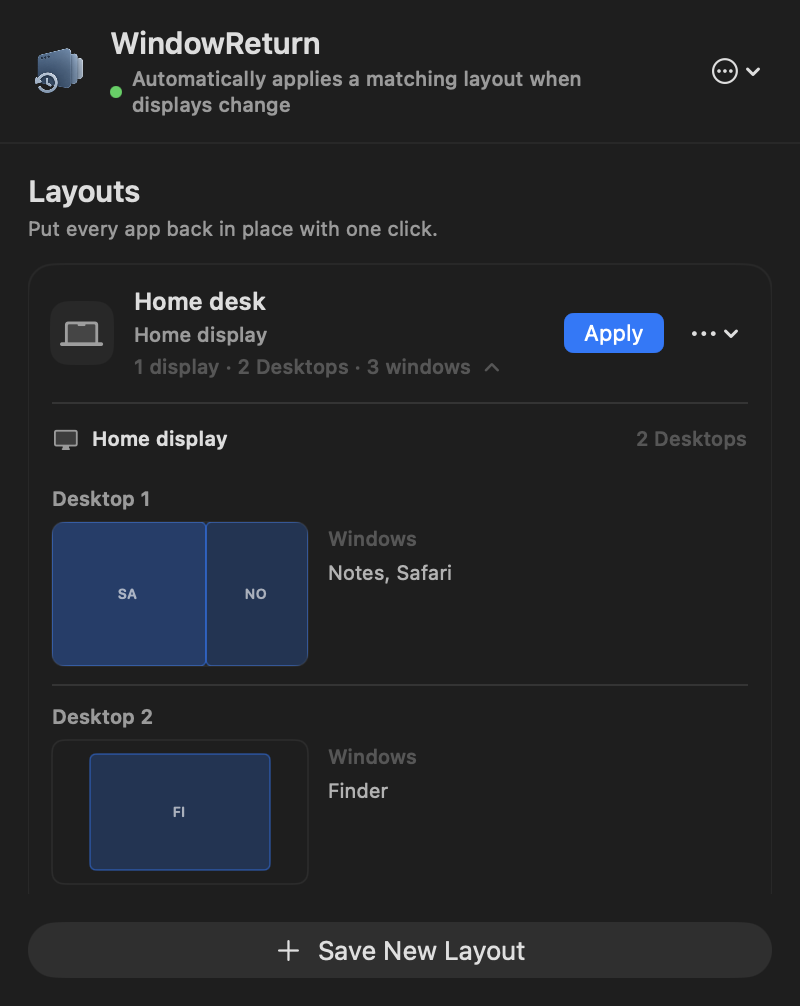
Shown throughout: real app screenshots, using example layouts.
Office. Home. Just your MacBook.
Save a layout for each setup. Choose which ones apply automatically.
- 01
Arrange.
Put your windows on the displays and Desktops you want, at the sizes you like.
- 02
Save.
Name your layout. Set it to apply automatically when those displays connect.
- 03
Return.
Reconnect your displays, or choose a saved layout from the menu bar.
Closed an app? WindowReturn can reopen it and position its window when available.
Finder, too. With your permission, saved local folders can return to their Desktops.
A little utility. Clear boundaries.
Local by default.
Your layouts stay on your Mac. Window titles and folder paths aren’t uploaded.
About your privacyYour Desktops stay yours.
Missing Desktops can be added. Existing ones are never automatically deleted or reordered.
You’re in control.
Choose automatic layouts, apply one manually, or pause automation whenever you want.
One-time purchase
Your familiar setup.
Not another subscription.
Try every feature free for 14 days. Your trial starts with your first successful save or restore, so setup time doesn’t count.
Check your Mac’s setup WindowReturn for Mac
$14.99Pay once. Keep your purchased version.
- Use on up to 2 Macs you control
- Manual and automatic restore across displays and Desktops
- updates for the purchased major version
- 14-day refund policy
No card needed for the trial. Refund details
Before you download
A good fit for your Mac?
Works with regular app windows across macOS Desktops. Apps in macOS full-screen mode aren't supported.
- macOS
- 14 or later
- Window access
- Accessibility permission
- Mission Control
- Displays have separate Spaces · On
- Desktop order
- Automatic rearrangement · Off
- Finder folders
- Optional Finder Automation permission
- More detail
- Setup and compatibility help
A few things to know.
Something else on your mind?
Ask us directly.
Does it work across macOS Spaces?
Yes. Spaces are the separate Desktops you switch between in Mission Control. WindowReturn remembers the display, Desktop, size, and position of supported windows. Apps in macOS full-screen mode aren't supported.
Will it open apps, tabs, and documents?
WindowReturn can reopen a closed app and position its window once it appears. It won't recreate your closed tabs, documents, or projects, and some apps may not reopen every window. With your permission, it can also reopen saved Finder folders.
What happens when I connect another monitor?
Automatic layouts match the exact set of saved displays. An unfamiliar monitor—even the same model—won’t trigger your office layout. Save a separate layout for that setup.
Can it change my existing Desktops?
WindowReturn can add missing normal Desktops needed by a layout. It never automatically deletes or reorders your existing Desktops. You can pause automatic restore at any time.
What happens when the trial ends?
Your saved layouts are not deleted. Activate WindowReturn with a license key to continue saving, updating, and applying layouts.
Do I need a cloud account?
No cloud account is needed for your layouts. They stay on your Mac. Anonymous diagnostics are off by default; sharing them is your choice. License activation and validation require a network connection.
Back to your work.
Not your window arrangement.
Download free trialOr buy WindowReturn · $14.99macOS 14+ · 14 days free · No subscription